Use Topaz for serious cleanup
Choose Topaz when you have many clips, a strong GPU, and need detail recovery, denoise, frame interpolation, or stabilization beyond a basic export setting.
Topaz is the heavy-duty choice.
AI Video Upscaler
TL;DR: the best AI video upscaler is Topaz Video AI for serious cleanup, DaVinci Resolve Studio for editors, and CapCut or Canva for quick online tests.
An AI video upscaler cannot rescue every generated clip. It works best when the prompt, product shape, motion, and lighting are already good. Upscaling a warped product or broken face usually makes the problem sharper, not better.
For AI-generated clips, the winning workflow is simple: generate short, choose the best take, trim, upscale or enhance only the keeper, then export for the target platform. This avoids wasting render time on clips that should have been rejected earlier.
Direct answer
The best AI video upscaler is Topaz Video AI for serious desktop cleanup, DaVinci Resolve Studio for editors already in a grading workflow, and CapCut or Canva for quick browser tests. Upscale only after the prompt, framing, and motion are worth keeping.
The best AI video upscaler is Topaz Video AI for serious desktop cleanup, DaVinci Resolve Studio for editors already in a grading workflow, and CapCut or Canva for quick browser tests. Upscale only after the prompt, framing, and motion are worth keeping.
| Plan or route | Cost signal | Best for | Caveat |
|---|---|---|---|
| Topaz Video AI | Topaz lists Topaz Video at $59/month and Topaz Studio at $34/month billed annually | Desktop upscaling, denoise, sharpen, stabilization, SDR to HDR, and high-volume local renders | Needs capable hardware and is overkill for one-off social tests. |
| DaVinci Resolve Studio | $295 one-time Studio license listed by Blackmagic Design | Editors who already grade, cut, and finish in DaVinci Resolve | The free version is strong, but Studio adds the AI Neural Engine and Super Scale-related AI tools. |
| CapCut AI Video Upscaler | CapCut promotes free AI upscaling to 4K through online and desktop paths | Fast social clips, creator edits, and mobile-first output | Great for speed, but less control than desktop tools for difficult footage. |
| Canva Video Upscaler | Canva lists a free app path with limits for MP4 clips up to 10MB and 10 seconds | Tiny browser tests, quick cleanup, and teams already editing in Canva | The file and duration limits make it a test tool, not a heavy production solution. |
| Browser upscalers | Usually credit, file-size, or subscription based | Occasional clips when you do not want desktop software | Upload limits, privacy terms, queue time, and compression vary widely. |
| Generator-native upscaling | Runway, CapCut, and some model hubs include upscale or enhance options | Simple workflows where generation and export happen in the same tool | Native upscaling is convenient, but dedicated tools can give more control. |
Choose Topaz when you have many clips, a strong GPU, and need detail recovery, denoise, frame interpolation, or stabilization beyond a basic export setting.
Topaz is the heavy-duty choice.
DaVinci Resolve Studio makes sense when upscaling is part of color, cut, audio, and delivery. It is not just a one-button enhancer.
DaVinci is best inside a full edit.
CapCut, Canva, and similar tools are fast enough for short Reels drafts and small files. They are also a good way to check whether enhancement is worth doing.
Online upscalers are fast filters for short clips.
Do not upscale clips with warped logos, bad hands, odd faces, or melted product edges. Upscaling makes those defects clearer.
Cut the clip to the actual useful seconds before running an upscaler. This reduces render time and avoids polishing dead air.
A Reel, YouTube Short, product page video, and ad library export have different needs. Pick output size and sharpness for the final platform.
Watch the upscaled clip at phone size and desktop size. If the result looks plastic, reduce sharpening or use a softer model.
Topaz Video AI is the best fit for serious desktop enhancement. DaVinci Resolve Studio is best for editors, while CapCut and Canva are better for quick browser tests.
Only sometimes. AI upscaling can sharpen, denoise, and improve soft clips, but it will not reliably fix warped products, broken motion, or bad faces.
Trim and choose the keeper first, then upscale. Enhancing every draft wastes time and can make rejected clips look falsely useful.
Free upscalers can be enough for small clips and tests. Paid desktop tools are better when you process many clips, need more control, or require higher output quality.
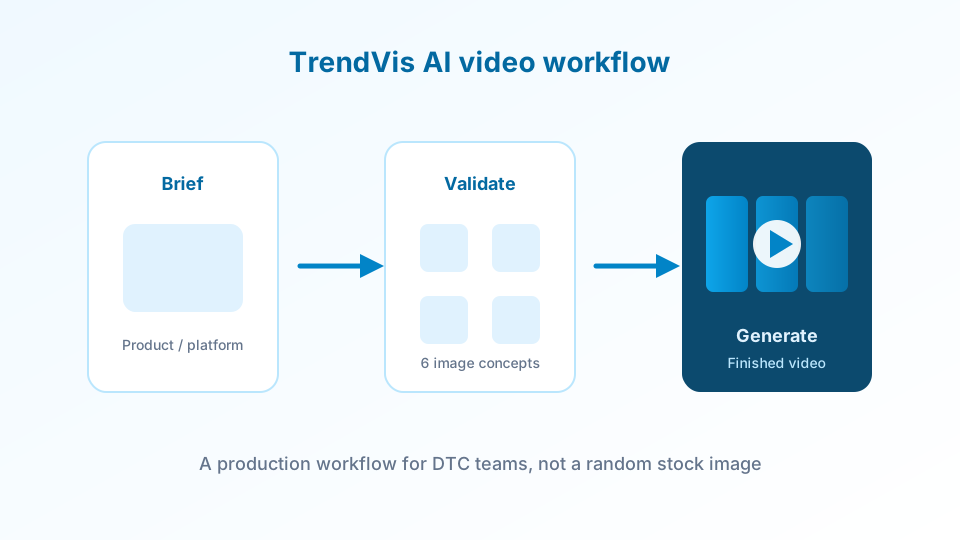
TrendVis turns product briefs into creative angles, validates them as images, then upgrades only the best concept to video.
Start in the studio